One Week with Zed: I Think I Will Keep It
VS Code has been my daily driver for a good while. What I genuinely like about it is the extension support: Excalidraw, draw.io, Remote - SSH, Prettier, and GitLens are the ones I use most. It is a great tool for a wide range of tasks, but I have found Zed to be a better fit for my workflow. I started using Zed a week ago and I am still using it.
Startup: It Opens Fast!
A fresh install of VS Code takes a longer time to open, while Zed opens instantly. Is it because Zed is written in Rust?
The UI is Minimalistic
Zed looks familiar if you come from VS Code. You can import your keybindings and theme from Settings. Cmd+P and Cmd+Shift+P work the same. Sidebar on the left, tabs on top.
But Zed is much cleaner. VS Code fills up fast. You get the Activity Bar, Open Editors, breadcrumbs, minimap, status bar, and whatever panels extensions add. It gets crowded.
Zed keeps it simple. The file tree shows when you need it and hides away. No permanent Open Editors list taking up space. Tabs are small. You can turn them off and just use Cmd+P.
There is less noise. Fewer icons and badges everywhere.
Getting Started: Your First Hour in Zed
If you are new, here is the exact sequence I used.
1. Install Download the app from https://zed.dev/download. Zed is available for macOS, Linux and Windows, so use the installer that matches your machine.
2. Open a folder
Press Cmd + O (macOS) or Ctrl + O (Linux). Pick your project folder. That is it. Zed indexes it instantly.
3. Find your files
Press Cmd + P (macOS) or Ctrl + P (Linux) for fuzzy file search.
Type part of a filename. Arrow down. Enter. Done.
4. Edit with multiple cursors
Cmd + D (macOS) selects the next occurrence of the word under your
cursor. Cmd + Shift + L selects all occurrences. Type once, edit everywhere.
5. Open the command palette
Cmd + Shift + P is your friend. Every action lives here. Search
settings to open the JSON config. Search theme to pick a color scheme.
6. Enable Vim mode (optional)
Open the command palette (Cmd + Shift + P), type vim mode, and
toggle it on. Done. No extension marketplace. No restart.
7. Start a collaboration session
(Note: I have not tried this feature yet) Open the command palette, search collab, and click Share Project.
You will need to sign in for collaboration, but you do not need to install a separate Live Share-style extension. Copy the invite link, send it to a teammate, and you are editing the same files in real time.
That is all you need for the first hour. Zed stays minimal by design.
AI Features I Actually Use
Zed handles this aspect differently. It has an Agent Panel where you can chat with a model, but the part I use most is the inline editing. I highlight a few lines, press Ctrl+Enter, and type what I want something like "refactor this to use a match statement" or "add error handling here." The suggestion appears right there in the editor as a diff, inline with my code. Gray for deletions, green for additions. VS Code has the same feature too, but Zed feels more integrated and more natural.
It also does not lock you into one LLM provider. I wired up my own Ollama Cloud instance and Zed just lets me pick it from a dropdown.
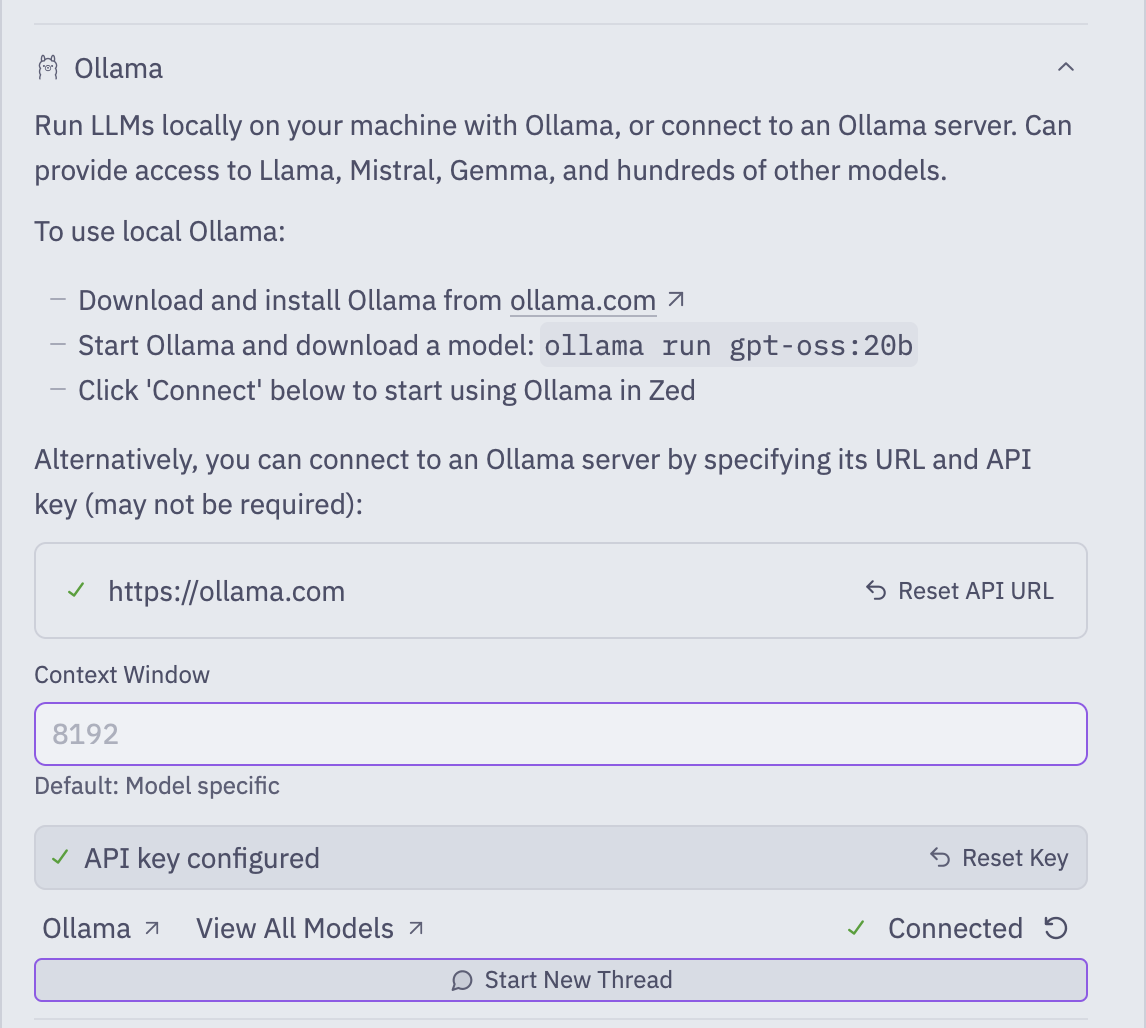
Connecting to Ollama Cloud
How I set it up:
1. Open the Agent Panel
Open the command palette (Cmd + Shift + P) and
search agent: open settings. The panel slides open on the left.
2. Hit Configure
At the top of the panel, click Configure. You land on the LLM Providers screen.
3. Pick Ollama from the list
Scroll to Ollama in the providers list and expand it. You will see two options: run locally or connect to a remote server.
4. Paste your endpoint and key
For local Ollama, use the local API URL that Zed suggests. For Ollama Cloud,
the current Ollama integration docs use https://ollama.com as the API URL.
Paste your API key, click Connect, and Zed will test the connection.
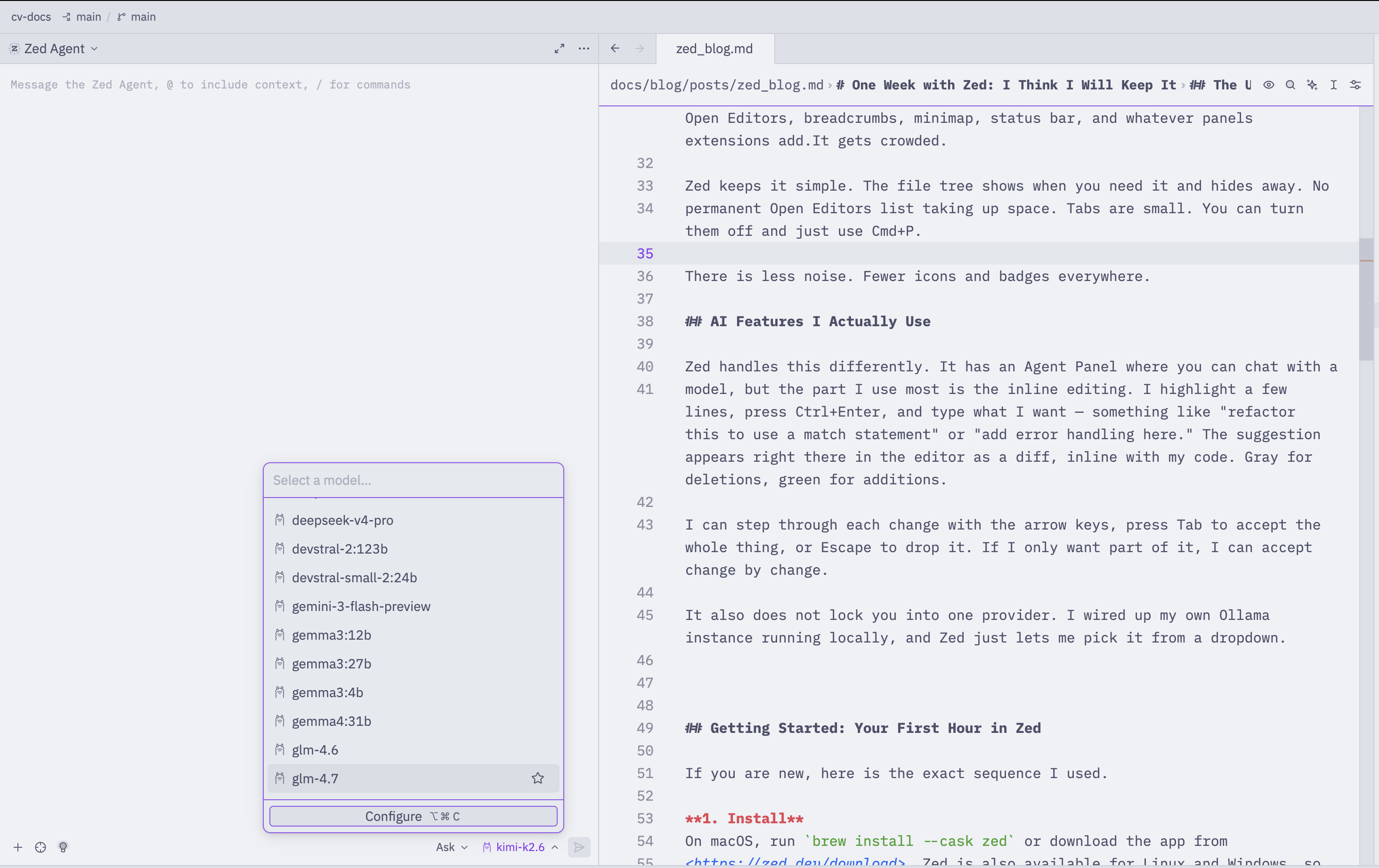
5. Select the model in the chat Back in the Agent Panel, the model dropdown at the bottom now lists your Ollama models. Pick one. Chat messages and inline edits now route through the provider you configured instead of silently defaulting to Zed's hosted models.
6. Use it inline
Highlight a block of code. Press Ctrl + Enter or click the sparkle icon.
Describe what you want. Zed hits your Ollama endpoint and shows the diff right there. Accept with Tab. Reject with Esc.
The Honest Downsides
VS Code still wins on one thing: the extension marketplace. Zed is not there yet but the marketplace is growing. Also, VS Code's settings UI is searchable and visual. I prefer that over tweaking JSON file in Zed. I find it annoying sometimes.
There are also situations where VS Code is still the better choice. If you develop inside Docker containers remotely, VS Code has a whole system for that. If you do a lot of data science work with Jupyter notebooks, VS Code handles those better right now.
Zed is excellent in its own way, but it is not a one-to-one replacement for every VS Code workflow yet.